 callex
Back to blog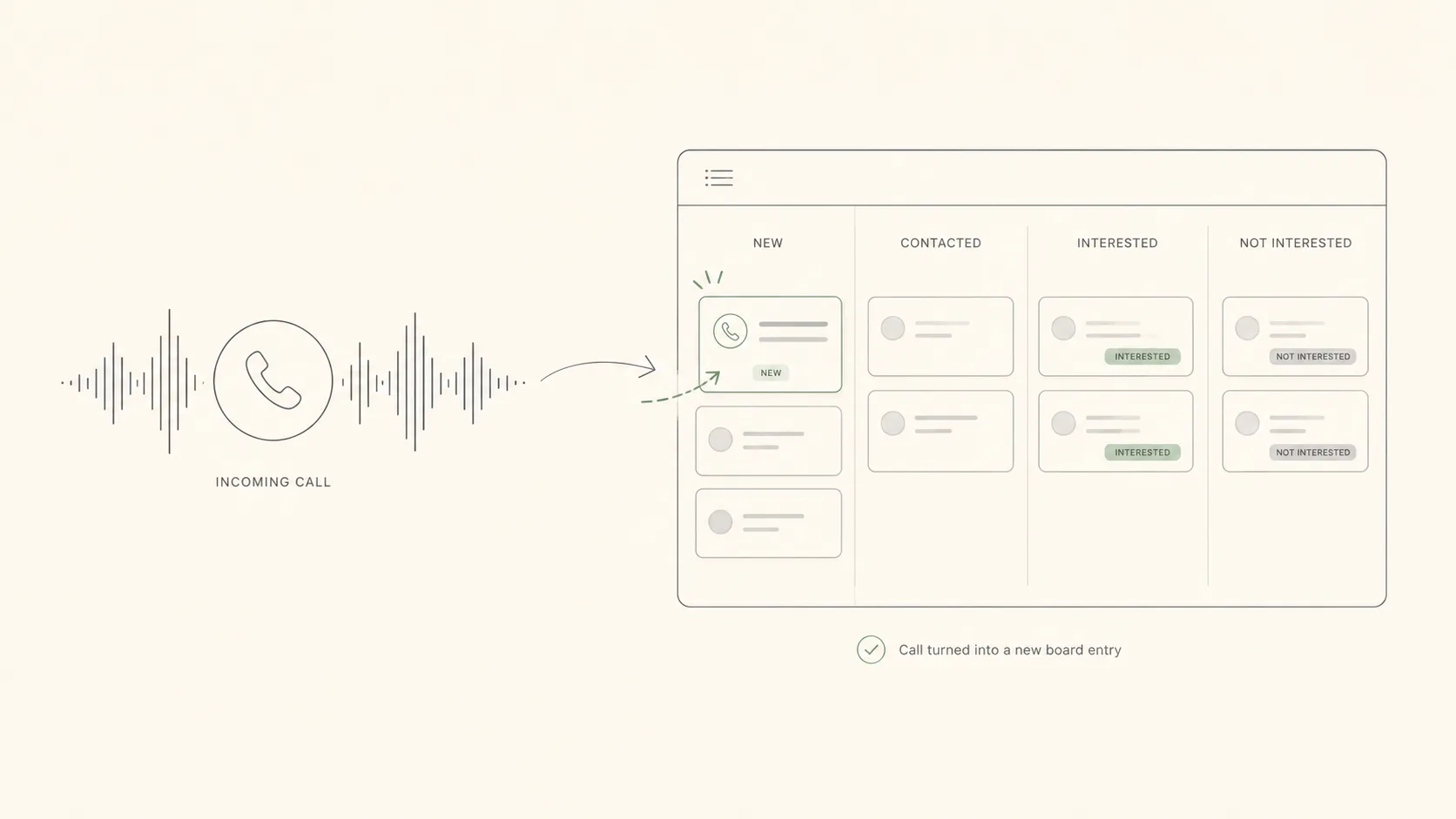
IntegrationsCRMMonday
How to Connect a Voice Agent to Monday in 3 Steps
A practical guide to connecting a Callex voice agent to Monday CRM: automatic lead creation, status updates, and call-outcome triggers.
·1 min read·Callex Team
A practical guide to connecting a Callex voice agent to Monday CRM: automatic lead creation, status updates, and call-outcome triggers.
Monday is one of the most popular work-management and CRM platforms. In this post we’ll show how to connect a voice agent to it, so handled inbound or outbound calls can create items, update statuses, and trigger follow-up actions.
In Monday, go to Profile > Developers > My Access Tokens > Create. Save the token in your project’s .env as MONDAY_API_TOKEN.
Choose the board you want the agent to write to, and set up columns:
Each completed call can send a POST to your site’s /api/lead endpoint, which forwards the data to the Monday GraphQL API. Here’s a mutation template:
mutation {
  create_item (
    board_id: 1234567890,
    item_name: "Inbound call: Danny Cohen",
    column_values: "{\"phone\":\"+972501234567\",\"status\":\"interested\"}"
  ) { id }
}
That’s it. Calls the voice agent handles can land on the board with less manual admin.
 Outbound
Most organizations sit on a backlog of leads that never closed. Instead of writing them off, an outbound AI agent can re-qualify the whole list and surface who is still interested.
 Healthcare
Clinics can lose meaningful revenue to appointments that never show. Here’s how voice AI books, reminds, and helps reduce cancellations.
Talk to our team about your use case and see Callex running on your own calls.